Tarkov Sound Settings for Hearing Footsteps Clearly
Tarkov Sound Settings for Hearing Footsteps Clearly
Good audio is half the battle in Tarkov — if you want an even bigger edge in your raids, take a look at our Escape from Tarkov cheats.
Set Master volume high, SFX volume high, Music volume to zero, Interface volume low, Dialogue volume moderate, enable Binaural Audio (HRTF), set output to Stereo, disable all Windows spatial sound and audio enhancements, and set your device sample rate to 48000 Hz / 24-bit. That single configuration, validated across community guides and competitive players, gives you the clearest footstep audio and most reliable directional cues Tarkov can produce.
Copy-ready checklist — apply these now:
- Master Volume: 80–100
- SFX Volume: 85–100 (this is your footsteps, gunfire, and environmental cues)
- Music Volume: 0 (zero — it masks tactical sounds)
- Interface Volume: 20–40
- Dialogue Volume: 50–70
- Binaural Audio / HRTF: On
- Output Mode: Stereo
- Virtual surround (Windows Sonic, Dolby Atmos, DTS): Off
- Windows spatial sound: Off
- Windows audio enhancements: Disabled
- Sample rate: 48000 Hz, 24-bit
- Exclusive mode: Enabled (optional but recommended)
The single highest-impact change most players skip: turning Music to 0 and SFX to 90+ while disabling Windows spatial sound. Those three moves together do more for footstep clarity than any EQ preset.
Pro Tip: Save this checklist as a text file on your desktop. After every major Tarkov patch from BattleState Games, check whether an update reset your audio sliders — it happens more often than you’d expect.
Table of Contents
- What each in-game audio slider does and the right range for competitive play
- EQ presets that actually help you hear footsteps: frequency tables and starting points
- How to configure Windows and your audio device to preserve positional cues
- Common Tarkov audio problems and quick fixes
- Key Takeaways
- Why most players still get Tarkov audio wrong
- Further reading and sources worth bookmarking
What each in-game audio slider does and the right range for competitive play
Tarkov’s audio menu looks simple, but each slider controls a distinct layer of the game’s sound mix. Getting the balance wrong means footsteps compete with menu clicks or ambient music — and you lose the information you need.
Master Volume (80–100) This is the global ceiling for all audio output. Keep it high. A low master volume forces you to raise your headset’s physical volume, which introduces amplifier noise and reduces headroom. Set it between 80 and 100 and control loudness at the headset level instead.
SFX Volume (85–100) SFX covers every in-game sound that matters tactically: footsteps, gunshots, reloads, door interactions, and environmental cues. This is the slider that directly affects your ability to hear an enemy. Competitive guides consistently recommend keeping SFX at or near maximum. Dropping it below 80 noticeably reduces footstep transient clarity at distance.
Music Volume (0) Set this to zero. Menu music and in-raid ambient tracks occupy the same frequency space as footsteps and distant gunfire. There is no tactical reason to keep it above 0.
Interface Volume (20–40) UI sounds — inventory clicks, map interactions, menu confirmations — are distracting at high levels during a raid. Keep them low enough to hear but not loud enough to startle you mid-engagement.
Dialogue Volume (50–70) Trader and NPC dialogue carries useful contextual information. A range of 50–70 keeps it audible without competing with SFX.
EQ presets that actually help you hear footsteps: frequency tables and starting points
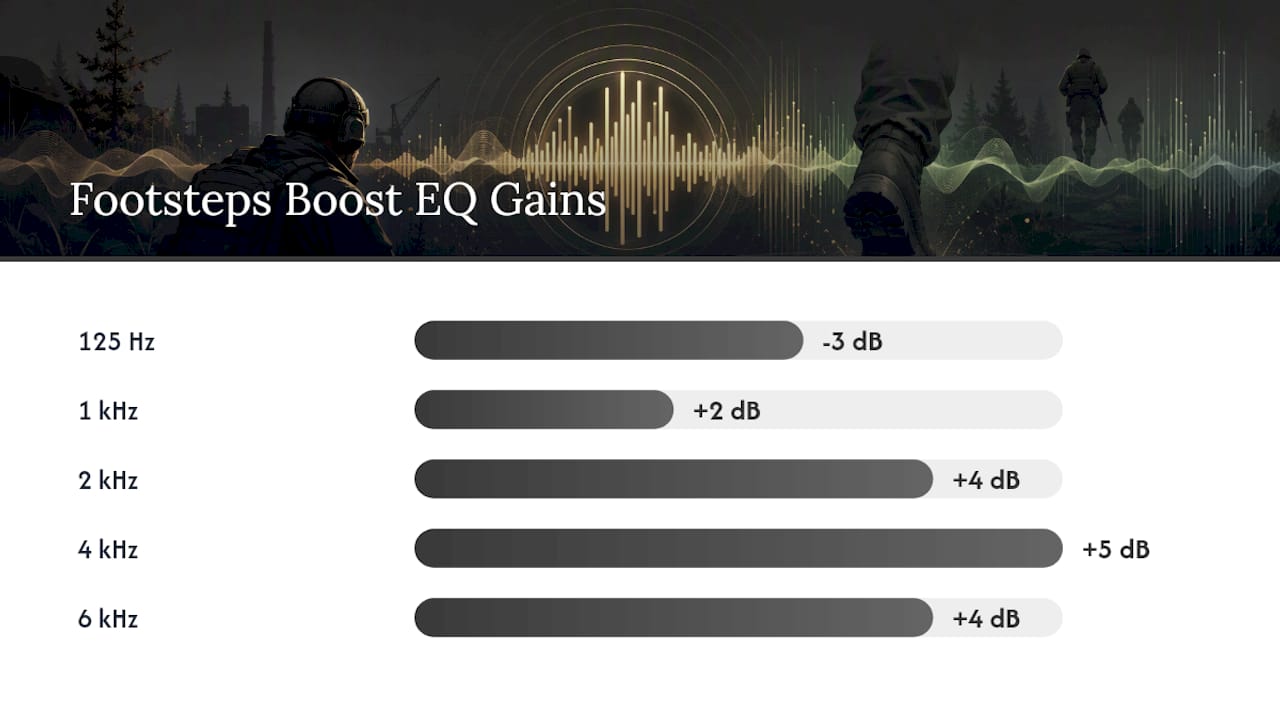
Equalization shapes which frequencies your ears receive. For Tarkov, the goal is straightforward: make footstep transients (the sharp, brief sounds of boots on surfaces) stand out against the game’s dense ambient mix. Boosting the 2–6 kHz band sharpens those transients and improves localization. Cutting muddy low-end (below 200 Hz) reduces rumble that masks detail.
Two presets cover most players. Apply them in Equalizer APO with the Peace GUI, or in your headset’s companion software (SteelSeries GG, ASUS Sonic Studio, HyperX NGENUITY, or similar).
Footsteps Boost preset
Prioritizes mid-high frequencies. Best for players who struggle to hear footsteps at distance or through ambient noise. Can cause mild ear fatigue on long sessions.
| Frequency Band | Gain (dB) | Notes |
|---|---|---|
| 63 Hz | -4 | Cut rumble and low-end mud |
| 125 Hz | -3 | Reduce bass bloom |
| — | -2 | Slight low-mid cut |
| — | 0 | Neutral |
| 1 kHz | +2 | Presence lift |
| 2 kHz | +4 | Footstep transient clarity |
| 4 kHz | +5 | Peak footstep and reload detail |
| 6 kHz | +4 | Upper detail and localization |
| 8 kHz | +2 | Air and distance cues |
| — | +1 | Subtle high-end extension |
| — | 0 | Neutral |
Balanced / Competitive preset
Milder boosts with less ear fatigue. Better for long sessions or players using bright headsets (like open-back monitors) where the Footsteps preset would sound harsh.
| Frequency Band | Gain (dB) | Notes |
|---|---|---|
| 63 Hz | -3 | Light low cut |
| 125 Hz | -2 | Reduce bass |
| — | -1 | Slight low-mid trim |
| — | 0 | Neutral |
| 1 kHz | +1 | Mild presence |
| 2 kHz | +3 | Footstep clarity |
| 4 kHz | +3 | Detail without harshness |
| 6 kHz | +2 | Localization support |
| 8 kHz | +1 | Light air |
| — | 0 | Neutral |
| — | 0 | Neutral |
Headset-specific adjustments:
- Closed-back headsets (HyperX Cloud II, SteelSeries Arctis Nova Pro) already emphasize bass. Cut 63 Hz and 125 Hz more aggressively (an extra -2 dB each).
- Bright open-back headsets (Beyerdynamic DT 990 Pro) can sound harsh above 6 kHz. Reduce the 6 kHz and 8 kHz bands by 1–2 dB from the values above.
- USB DAC users: apply EQ at the system level via Equalizer APO rather than in-headset software to avoid double-processing.
Compressor settings for dynamic range control: A mild compressor keeps footsteps audible when grenades and gunfire spike the mix. Recommended starting values are a ratio of 2:1–3:1, attack of 5–10 ms, and release of 100–200 ms, with a threshold set to catch only the loudest transients. This lifts quiet cues without making gunfire sound flat.
Pro Tip: Use Equalizer APO with the Peace GUI on Windows. It applies EQ at the driver level before any game processing, which means it works with Tarkov’s binaural output without interfering with HRTF rendering.
How to configure Windows and your audio device to preserve positional cues
Your in-game settings only work as well as your OS and device configuration allow. Virtual surround processing and Windows audio enhancements sit between Tarkov’s output and your ears, and they consistently degrade the binaural cues the game spent processing power to create.
Step-by-step: disable Windows spatial sound and enhancements
- Right-click the speaker icon in the Windows taskbar and select Sound settings.
- Under Output, click your headset, then select Device properties.
- Open Additional device properties and go to the Enhancements tab.
- Check Disable all enhancements and click Apply.
- Go to the Spatial sound tab and set it to Off.
- Go to the Advanced tab, set the default format to 24 bit, 48000 Hz (Studio Quality), and check both Exclusive Mode boxes.
- Click OK and restart Tarkov.
Setting the sample rate to 48000 Hz matches Tarkov’s internal audio engine output. A mismatch (e.g., 44100 Hz or 96000 Hz) forces Windows to resample in real time, which introduces subtle artifacts and can smear transient timing.
Common Tarkov audio problems and quick fixes
Most audio issues in Tarkov trace back to a small set of causes. Work through this list before adjusting EQ or in-game sliders.
Low overall volume
- Check that Master and SFX are both above 80 in-game.
- Confirm Windows volume is at 100% for your output device.
- Check that your headset’s physical volume wheel or inline control is not turned down.
Muffled footsteps
- Apply the Footsteps Boost EQ preset (boost 2–6 kHz, cut below 200 Hz).
- Disable Windows audio enhancements — they are the most common cause of muffled high-frequency detail.
- Confirm you are not running a virtual surround mode that is compressing the upper frequencies.
Distorted or clipping explosions
- Lower Master Volume by 5–10 points.
- If using a compressor plugin, raise the threshold so it catches fewer transients, or reduce the ratio to 2:1.
- Check that your headset’s onboard amplifier is not set above unity gain.
Footsteps coming from the wrong direction
- Disable all virtual surround processing at the OS and driver level.
- Confirm Binaural Audio is enabled in-game and that your output device is set to Stereo (not 5.1 or 7.1) in Windows Sound settings.
- If the problem persists, try disabling HRTF entirely and using flat stereo — some ear shapes do not respond well to Tarkov’s HRTF model.
Audio cuts out or stutters mid-raid
- For USB headsets: try a different USB port, preferably a rear motherboard port rather than a front-panel header.
- Disable Bluetooth on your PC if you have a Bluetooth audio device paired — Windows sometimes switches output devices mid-session.
- Update your audio driver directly from the chipset manufacturer (Realtek, Creative, or your DAC brand) rather than relying on Windows Update.
No sound after a Tarkov update
- BattleState Games patches occasionally reset audio output device selection. Open Sound settings in-game and reselect your headset as the output device.
Key Takeaways
The single most effective Tarkov audio configuration is: SFX at 85–100, Music at 0, Binaural Audio on, stereo output, and all Windows enhancements disabled.
| Point | Details |
|---|---|
| SFX and Master volume | Keep SFX at 85–100 and Master at 80–100 for maximum footstep audibility. |
| Music and Interface | Set Music to 0 and Interface to 20–40 to stop non-tactical sounds from masking footsteps. |
| Binaural Audio / HRTF | Enable with a stereo headset; disable all virtual surround at the OS and driver level. |
| EQ: boost 2–6 kHz | Use the Footsteps Boost preset to sharpen step transients; switch to Balanced for long sessions. |
| Test before you raid | Run the offline A/B protocol to confirm HRTF and EQ choices work for your specific headset. |
Why most players still get Tarkov audio wrong
Most guides tell you to “boost footsteps” and leave it there. The part they skip is that EQ and in-game sliders are the last step, not the first. The actual problem for most players is that Windows spatial sound or a headset’s virtual 7.1 mode is actively undoing the binaural processing Tarkov already applied. You can have perfect in-game settings and still hear footsteps from the wrong direction because a driver is re-spatializing audio that was already spatially encoded.
The order matters: disable OS-level processing first, set your device to 48000 Hz / 24-bit, confirm stereo output, then enable HRTF in-game, and only then touch EQ. Players who jump straight to EQ presets without fixing the device chain often report that “nothing works” — and they are right, because they are EQing a signal that has already been degraded.
One thing worth noting: the Balanced EQ preset is underrated for competitive play. The Footsteps Boost preset sounds impressive in a quiet room, but after 90 minutes in a raid, the elevated 4–6 kHz range causes enough ear fatigue that you start missing cues you would have caught with a milder curve. Rotate between presets based on session length, not just on what sounds sharpest in the first five minutes.
If you want to go further than audio settings, pairing clean sound with better situational awareness tools is where the real edge comes from. Valkyrieee’s EFT cheat suite includes full ESP features that complement audio awareness by showing you what your ears confirm. For players who want to protect their account while experimenting with settings and tools, the HWID spoofer keeps your hardware profile clean regardless of what you are testing.
Further reading and sources worth bookmarking
These are the most useful references for verifying settings, finding community-tested fixes, and going deeper on specific topics.
- Best Audio Settings for Escape From Tarkov
- Unlock audio clarity: best equalizer settings for Tarkov
- Tarkov: Audio Fluency and Sound Triangulation | Guild Order
- Best Audio Settings for Tarkov: Compressor & EQ Guide
- Audiophile Tarkov
- Escape from Tarkov Best Settings, Best Tarkov Settings — Pro Tips
- Advice for sound settings. - General game forum
- battlestategames.com
Recommended
Our Software
Try our software yourself
Three versions, one goal: keep you one step ahead. Pick the one that fits your playstyle.
Phoenix Chams
Chams-focused and budget friendly, the easiest way to get an edge in every raid.
Phoenix Chams gives you player and item chams so you always see what matters through walls, without the price of the full suite. The simplest and cheapest way to try Valkyrieee and start winning more fights.
Phoenix Lite
Lighter version that gives you the essential features and focuses on safe, simple and stable gameplay.
Phoenix Lite includes only the most important features like chams, infinite stamina, recoil control and basic ESP. It is designed for safe and low-profile gameplay, so you can improve without anything too complex. If you want something easy, stable and clean, Lite is the better option.
Phoenix
Full version of our software, made for players who want every feature and complete control in every raid.
Phoenix includes every feature we offer: aimbot, full ESP, price filters and many more that help you control every raid from start to finish. It works for both legit and rage playstyles, so you can play safe or go all-in. The strongest and most complete option.